Linux Workshop
This workshop aims to equip you with the best tool in the tech world!

What is Linux?
Linux is a family of open source Unix-like operating systems based on the Linux kernel, a kernel first released on 17 September 1991, by Linus Torvalds.
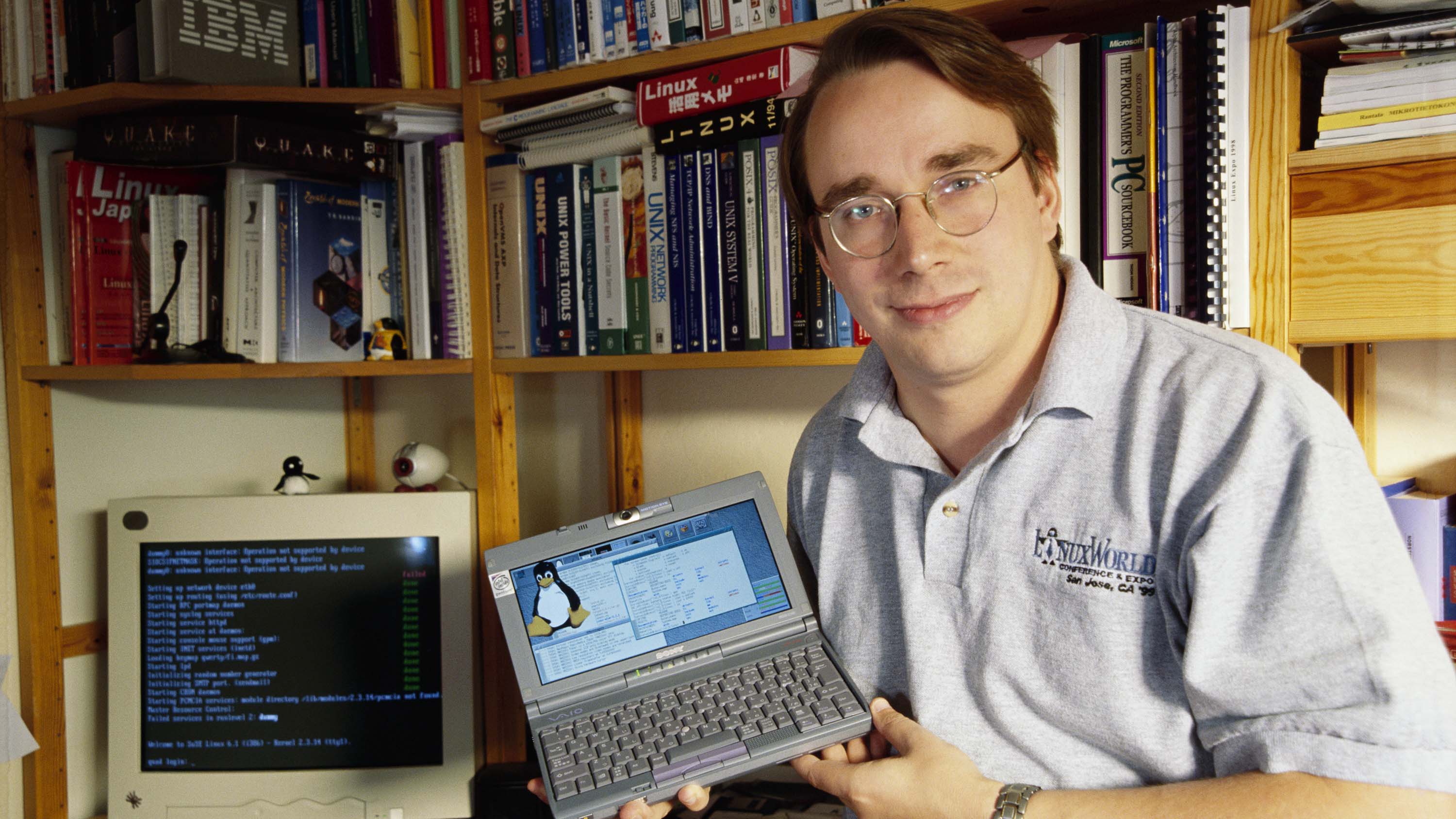
Intel 80386-based IBM PC

Usenet newsgroup called comp.os.minix
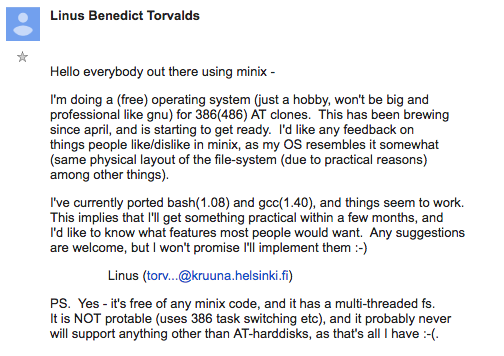
Usenet is a decentralized messaging system where users post messages to newsgroups, which are topic-based discussion channels.
 Richard stallman, GNU
Why do we care?
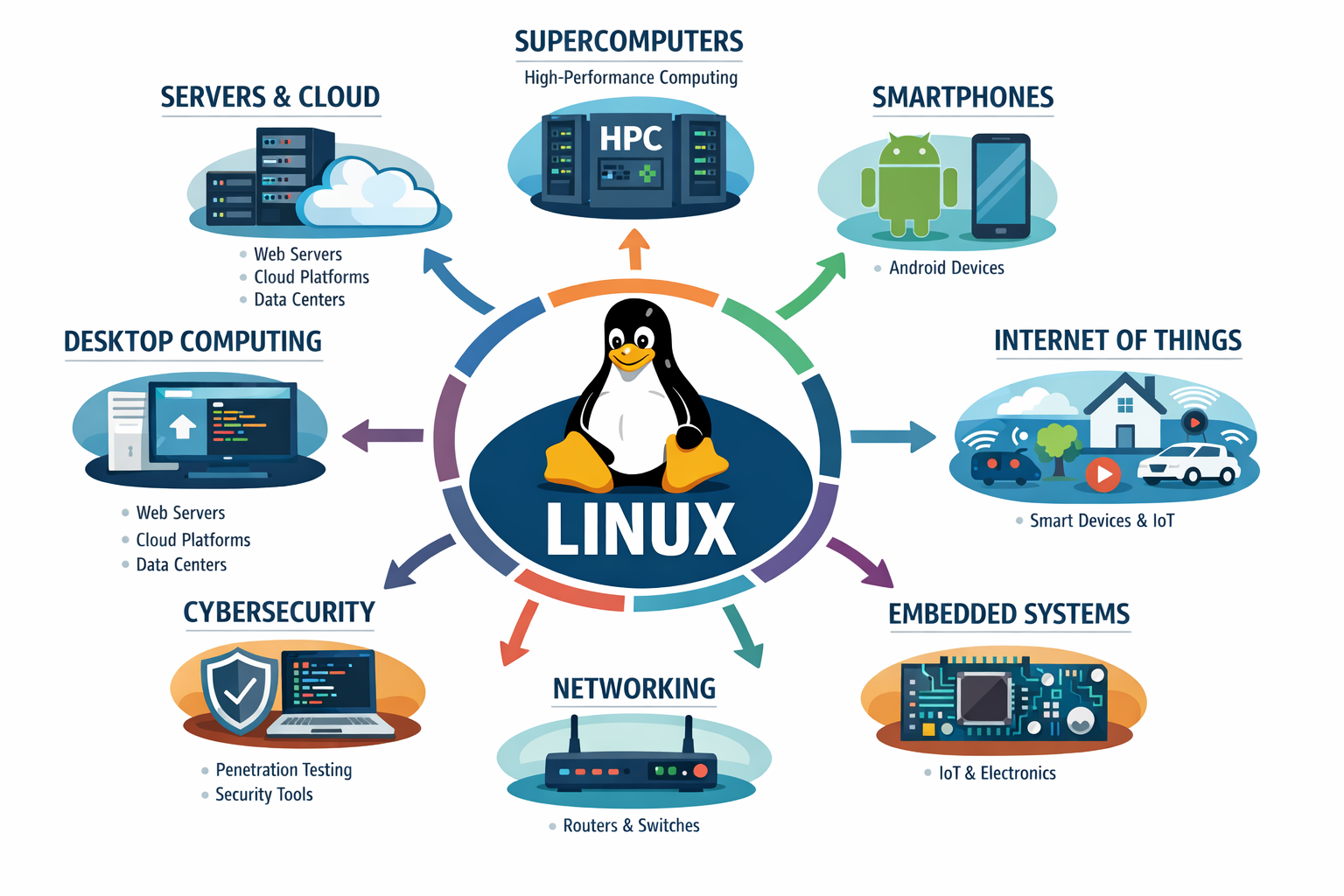
Linux is everywhere behind the scenes.
Servers and Cloud
- Most web servers run Linux (Apache, Nginx).
- Big cloud platforms (AWS, Google Cloud, Azure) are mostly Linux-based.
- It’s lightweight, fast, and stable for 24/7 uptime.
Open Source & Flexibility
- Linux is free and open source.
- You can modify it for anything: servers, embedded devices, IoT, networking, etc.
- No vendor lock-in -> huge for startups and enterprises.
Programming & Development
- Linux has powerful development tools out of the box (bash, gcc, python, git).
- Many languages and frameworks run best on Linux.
- Containers (Docker) and orchestration (Kubernetes) are mostly Linux-native.
Security & Reliability
- Linux is considered more secure than Windows by default.
- It’s less prone to viruses; easy to configure permissions and firewalls.
- Stability makes it ideal for critical systems (banks, satellites, servers).
Embedded Systems & Devices
- Android runs on the Linux kernel.
- Smart TVs, routers, IoT devices often run Linux.
- Learning Linux opens doors to hardware and low-level programming.
Community & Learning
- Massive open-source community → tons of resources and libraries.
- Skills learned on Linux transfer to cloud, devops, programming, security.
What is a Linux Distribution (distro)?
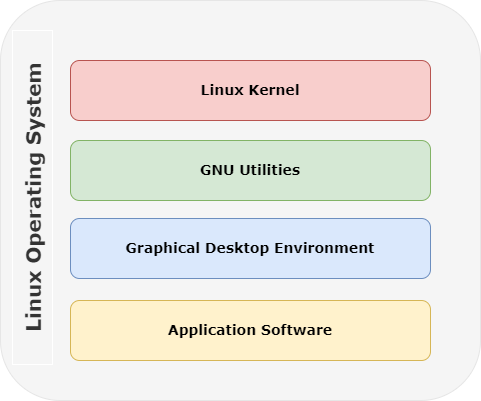
A Linux distribution, often abbreviated as distro, is an operating system that includes the Linux kernel for its kernel functionality.
1. Debian-based
- Debian – stable, secure, the base for many other distros.
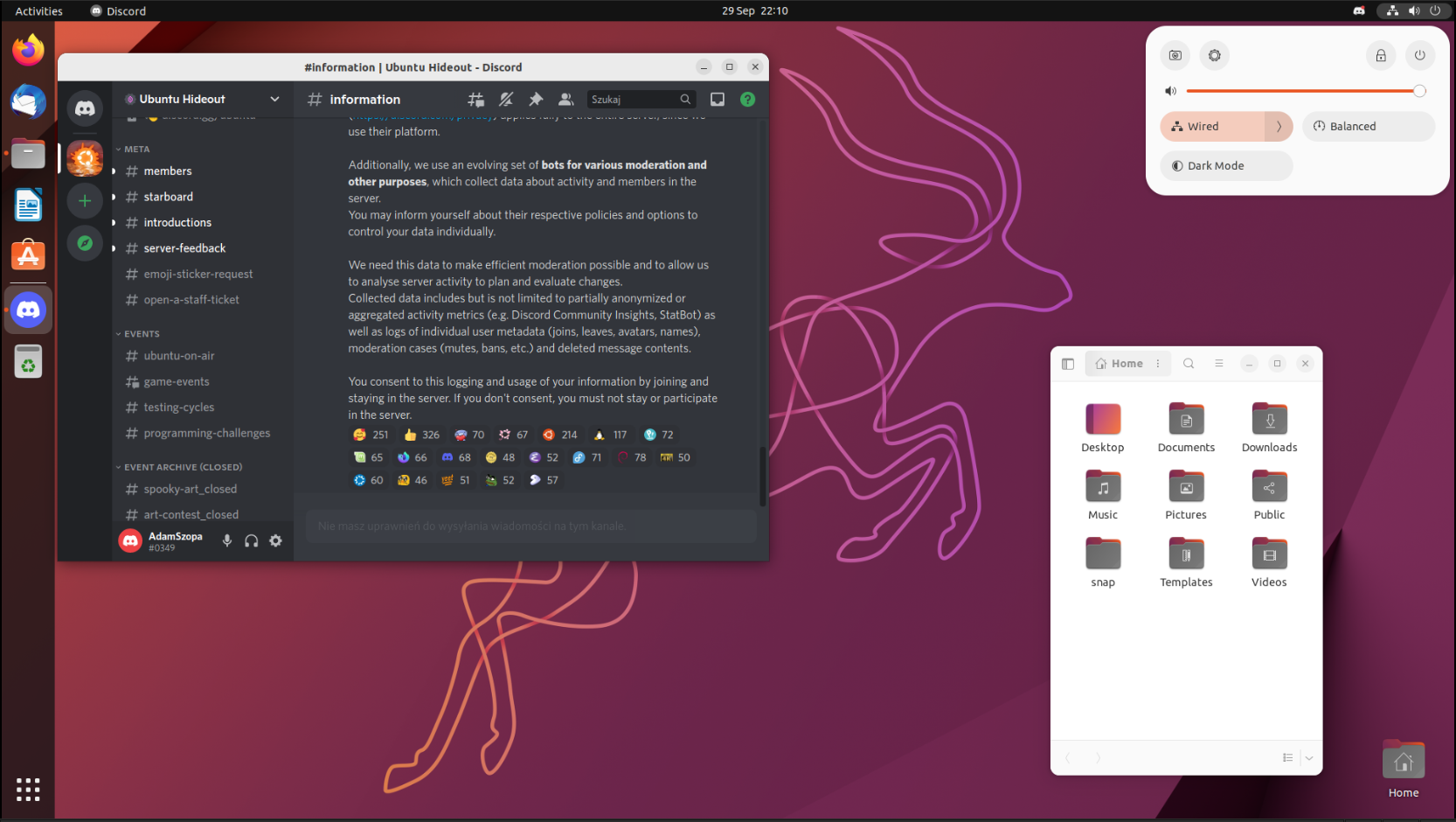
- Ubuntu – user-friendly, widely used for desktops and servers.
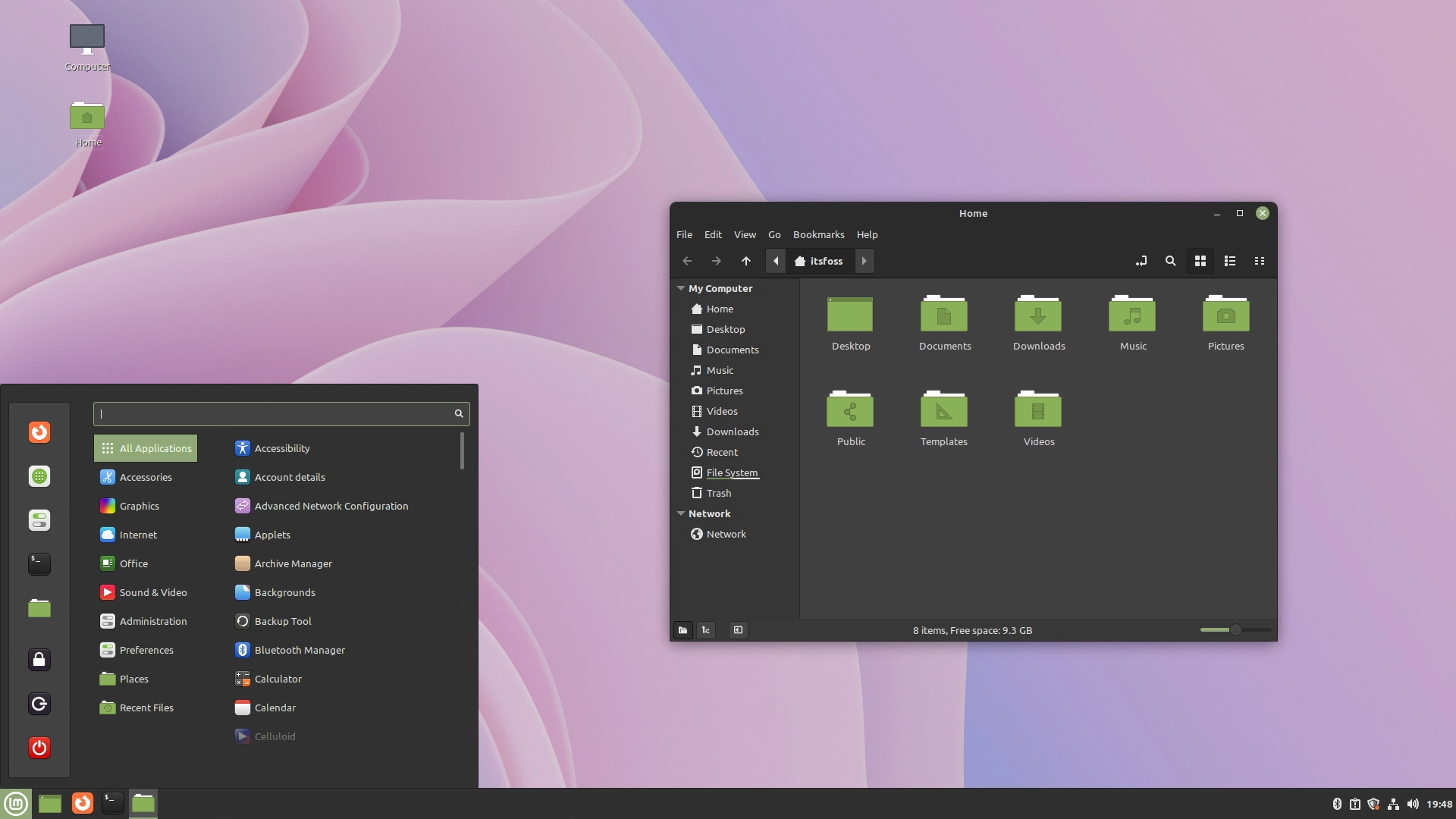
- Linux Mint – beginner-friendly, based on Ubuntu.
- Pop!_OS – focused on developers and gaming, based on Ubuntu.
2. Red Hat-based
- Red Hat Enterprise Linux (RHEL) – commercial, enterprise-focused.
- CentOS / Rocky Linux / AlmaLinux – community versions of RHEL.
- Fedora – cutting-edge features, upstream for RHEL.
3. Arch-based
- Arch Linux – rolling release, highly customizable, for advanced users.
- Manjaro – user-friendly version of Arch, easier installation.
4. SUSE-based
- openSUSE Leap – stable, enterprise-grade.
- openSUSE Tumbleweed – rolling release, latest software.
5. Other notable distros
- Gentoo – source-based, highly customizable.
- Slackware – one of the oldest, very minimal and manual.
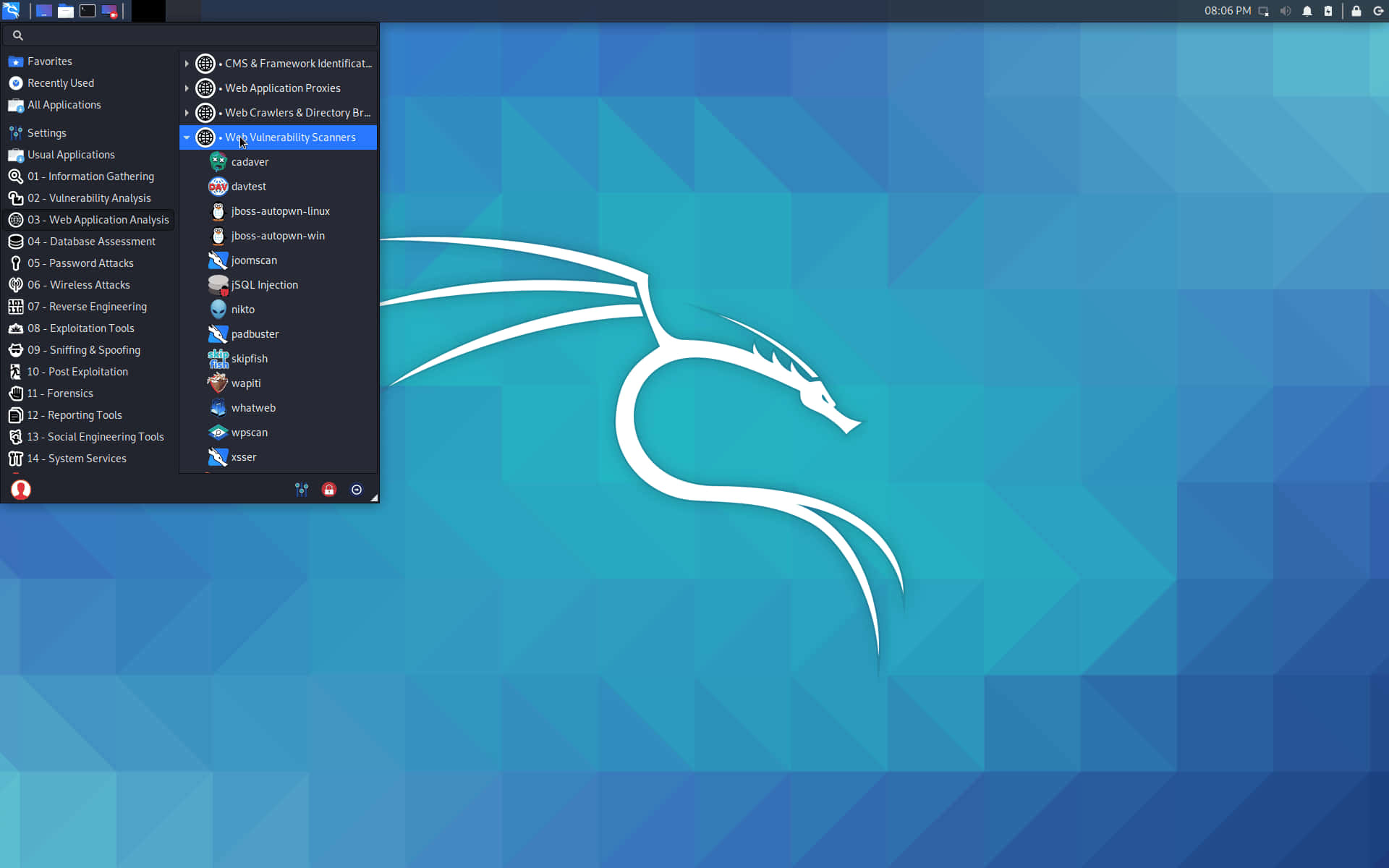
- Kali Linux – penetration testing and security-focused.
- Elementary OS – macOS-like design, beginner-friendly.
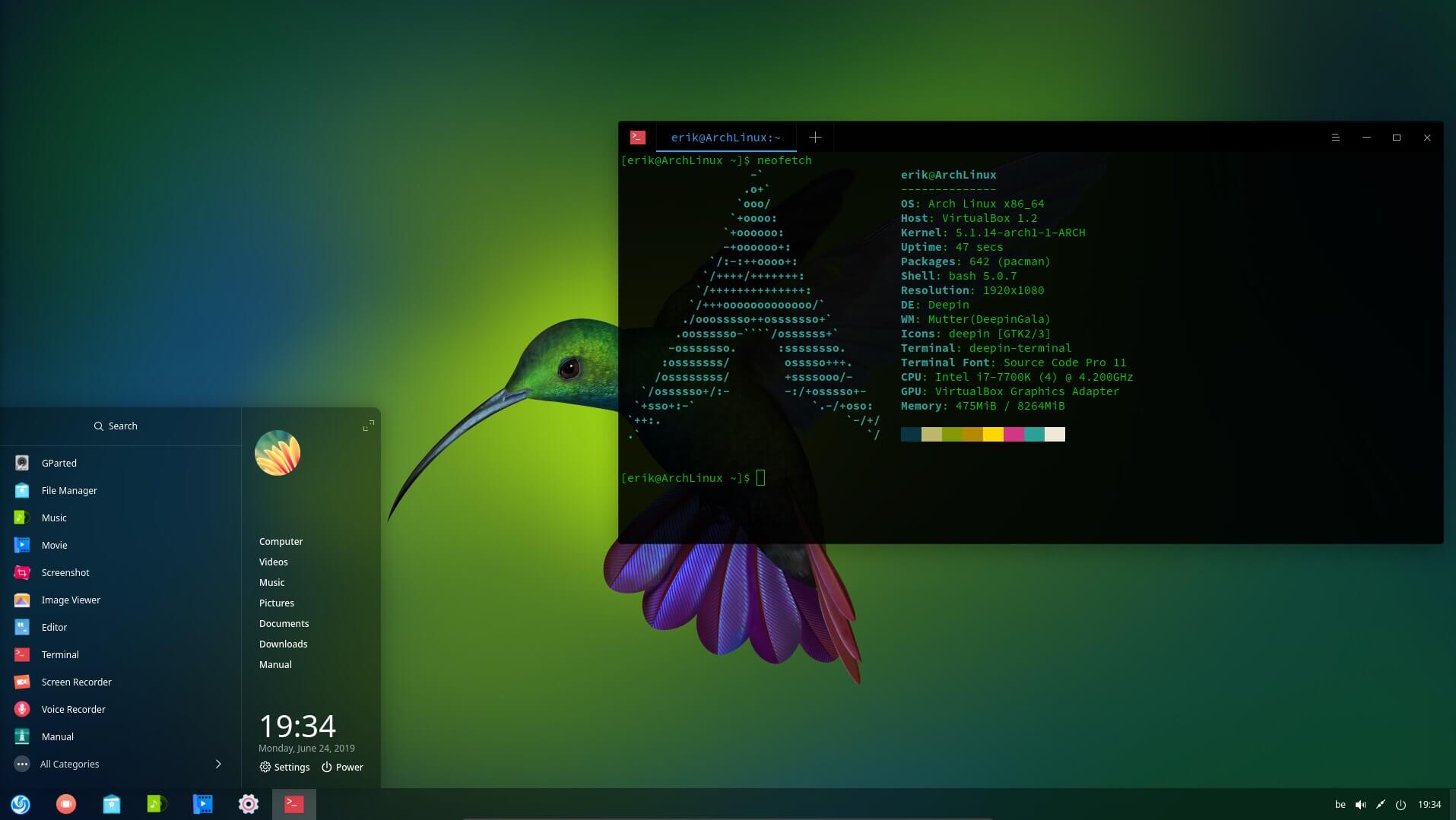
DistroWatch
DistroSea
How to Install Linux
There are several ways to install Linux, depending on your needs and hardware setup.
1. Using a Bootable USB/DVD
- Download the ISO image of your chosen Linux distribution.
- Create a bootable USB or DVD using tools like Rufus, Etcher, or UNetbootin.
- Boot your computer from the USB/DVD and follow the installation wizard.
2. Dual Boot with Another OS
- Install Linux alongside an existing OS (like Windows or macOS).
- During installation, choose the option to install Linux alongside the existing OS.
- You will get a boot menu (GRUB) to choose the OS at startup.
3. Virtual Machine
- Install Linux inside a virtual machine on top of your current OS.
- Use software like VirtualBox, VMware, or QEMU.
- Ideal for testing or learning Linux without affecting your main OS.
4. WSL (Windows Subsystem for Linux)
- Available for Windows 10/11.
- Enables running Linux natively on Windows without a VM.
- Install via the Microsoft Store or
wsl --installcommand.
Install WSL with one command
wsl --installGet a list of available linux distros
wsl.exe --list --onlineSpecify a distro to install
wsl.exe --install [Distro]5. Using a Live Environment
- Boot from a live USB/DVD without installing.
- Test Linux features and performance before doing a full installation.
- Some live environments allow installing Linux from within the live session.
6. Containerized Linux
- Run Linux in a container using Docker or Podman.
- Not a full OS install, but useful for isolated Linux environments on top of another OS.
Linux Terminal
The Linux terminal is a text-based interface that allows users to control and perform operations on a Linux computer by typing commands. It is a powerful tool for executing various tasks efficiently, often preferred by developers and advanced users.
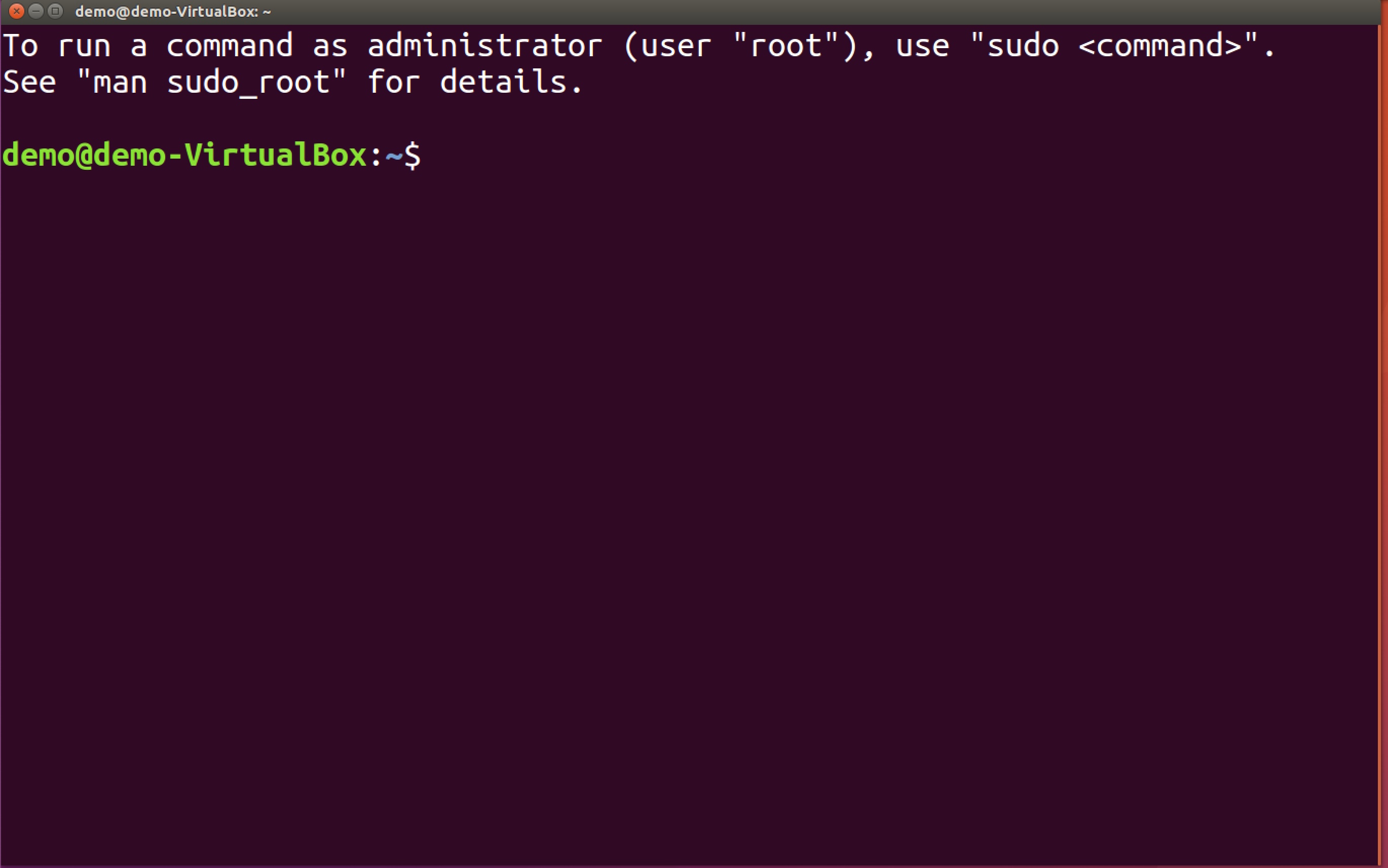
user@hostname(machine name)
~ -> current directory
$ -> prompt symbol
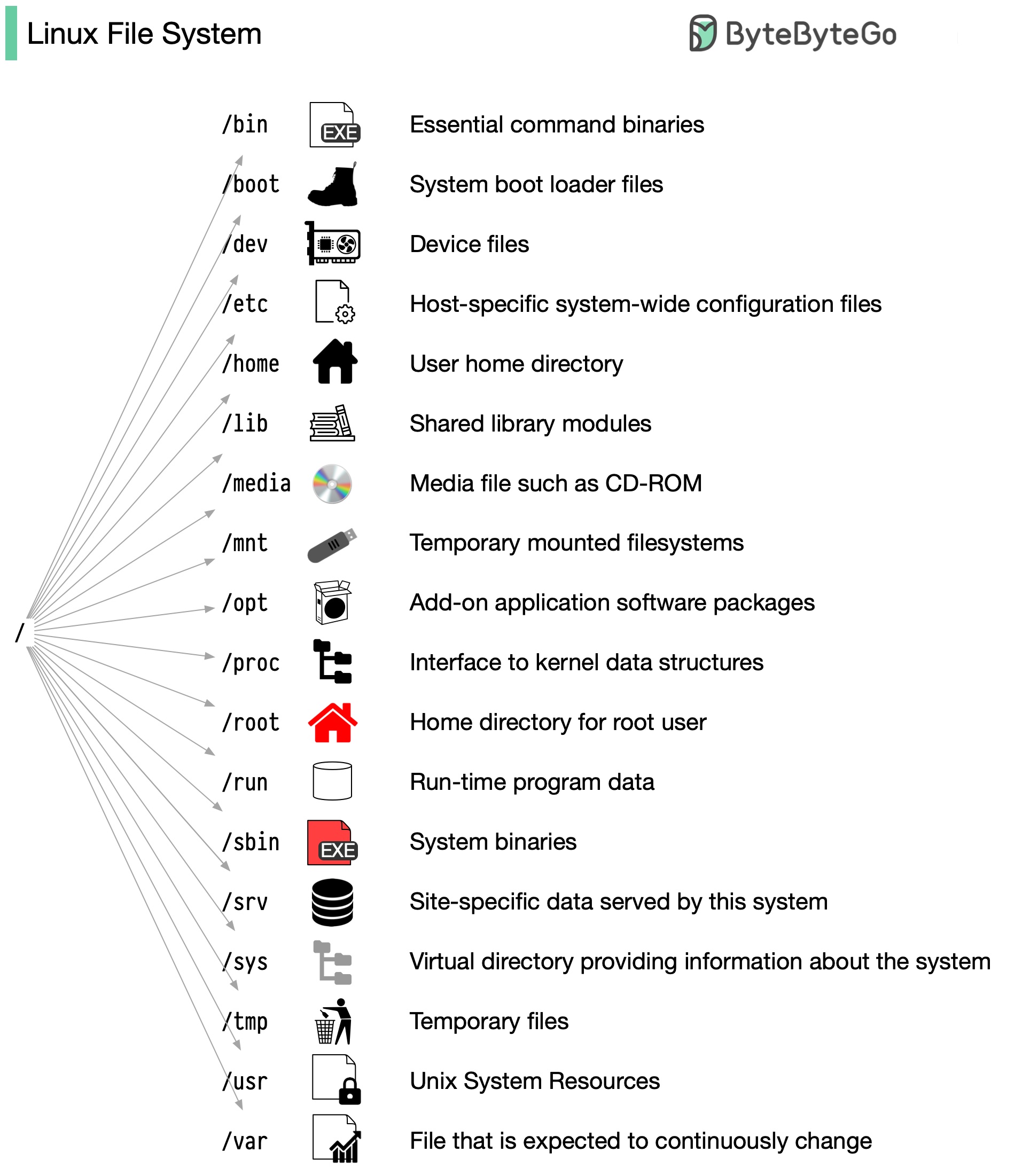
Linux File System
The Linux filesystem is a hierarchical structure starting from the root directory (/) that organizes all files and directories in a tree-like format. It follows the Filesystem Hierarchy Standard (FHS), which defines key directories like /bin (essential commands), /etc (configuration files), and /home (user directories).
Webterm.app
Navigating the File System
-
pwdShow current directory (Print Working Directory) -
lsList files and directories -
ls -lDetailed list (permissions, size, date) -
ls -aShow hidden files -
ls -laDetailed list including hidden files -
ls -lhHuman readable format.
File Type + Permissions
First letter:
d= directory-= filel= symlink
rwx r-x r-x
│   │   │
│   │   └── others
│   └────── group
└────────── owner
Changing Directories
-
cd /path/to/directoryGo to a specific directory -
cd ..Go up one directory -
cd ../..Go up two directories -
cdGo to home directory -
cd ~Go to home directory -
cd -Go to previous directory
Absolute vs Relative Paths
-
Absolute path example:
/home/user/Documents -
Relative path example:
Documents/project
Viewing Directory Contents
-
treeShow directory structure (may need install) -
ls /pathList contents of a specific directory
Useful Shortcuts
.→ Current directory..→ Parent directory~→ Home directory/→ Root directory
Tab Autocomplete
- Press
Tabto auto-complete file/folder names
Tips
-
Use arrow keys ↑ ↓ to navigate command history
-
Combine commands:
cd folder && ls -
alias ll='ls -al'unalias ll
Linux File Operations Commands
Creating Files
touch file.txt
Create an empty file
echo "text" > file.txt
Create or overwrite file with text
echo "text" >> file.txt
Append text to file
Viewing Files
cat file.txt
Print file content
less file.txt
Scroll through file
more file.txt
Basic viewer
head file.txt
Show first 10 lines
head -n 20 file.txt
Show first 20 lines
tail file.txt
Show last 10 lines
tail -n 20 file.txt
Show last 20 lines
tail -f file.txt
Follow file in real time
Editing Files
nano file.txt
Edit with nano
vim file.txt
Edit with vim
Copying Files
cp file.txt copy.txt
Copy file
cp file.txt /path/to/destination/
Copy to directory
cp -r folder/ new_folder/
Copy directory recursively
Moving and Renaming
mv file.txt newname.txt
Rename file
mv file.txt /path/to/destination/
Move file
Deleting Files
rm file.txt
Delete file
rm -f file.txt
Force delete
rm -r folder/
Delete directory
rm -rf folder/
Force delete directory
Permissions
chmod +x file.sh
Make executable
chmod 644 file.txt
Set permissions
chown user:user file.txt
Change owner
File Info
stat file.txt
Detailed info
file file.txt
Detect file type
Searching
find . -name "file.txt"
Find by name
grep "text" file.txt
Search inside file
grep -r "text" .
Search recursively
Process Commands
Viewing Processes
ps aux
List all processes
top
Real-time process view
Searching Processes
ps aux | grep name
Find a process
Managing Processes
kill PID
Terminate process
kill -9 PID
Force kill process
pkill name
Kill by name
Background & Jobs
command &
Run in background
jobs
List jobs
fg %1
Foreground job
ssh
ssh-keygen -t ed25519 -C "your_email@example.com"ssh username@server_ipssh -i ~/.ssh/id_ed25519 username@server_ipSymlinks
What is a Symlink?
A symlink (symbolic link) in Linux is a special type of file that acts like a shortcut or pointer to another file or directory.
ln -s <target> <link_name>ln -s /home/user/file.txt shortcut.txtln -s /var/www/html mysite